Võrgu avastamine
Üldine
Veyon Network Discovery lisandmoodul laiendab Veyon Masterit, et skannida konfigureeritud võrke arvutite jaoks, milles töötab üks või mitu Veyon Serveri eksemplari. Kõik avastatud arvutid ja RDP seansid kuvatakse koheselt paneelil Asukohad ja arvutid. Pärast seadistamist ei pea enam arvuteid ja asukohti säilitama sisseehitatud võrguobjektide kataloogis ega konfigureerima LDAP/ActiveDirectory integratsiooni. Viimaseks, kuid mitte vähem tähtsaks, sobib lisand suurepäraselt DHCP-põhistele võrkudele, kus arvutite IP-aadressid pidevalt muutuvad.
Algseadistus
First of all the Veyon Add-ons package needs to be installed. Make sure to download and install the version corresponding to your Veyon installation, i.e. Veyon 4.9.1 requires Veyon Add-ons 4.9.1 while for Veyon 4.8.3 you need to install version 4.8.3 of the add-ons. Please refer to Kasutuselevõtt for further information.
Kui installimine on lõppenud, näete Veyon Configurator programmis mõnda uut konfiguratsioonilehte. Üks neist kannab nime Network discovery ja võimaldab seadistada lisandmooduli:
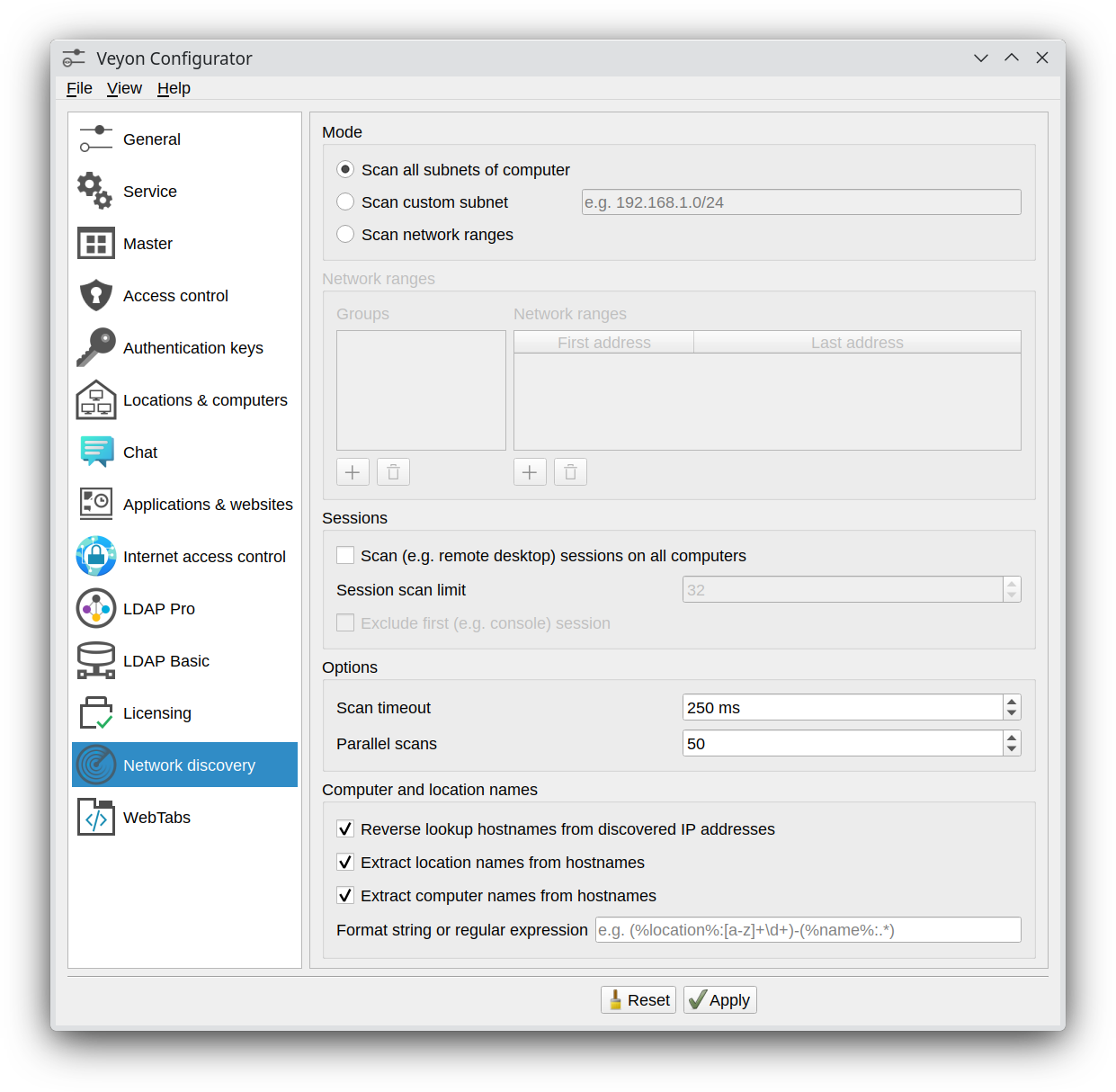
Network Discovery configuration page
Saate alustada vaikesätetega, kui arvuti alamvõrk on piisavalt väike, st IPv4 eesliide on /24 või alamvõrgu mask on 255.255.255.0. Suuremate alamvõrkude puhul on soovitatav muuta režiim Scan network ranges ja lisada testimiseks võrguvahemikuga rühm (võtke IP-aadressid oma keskkonda):
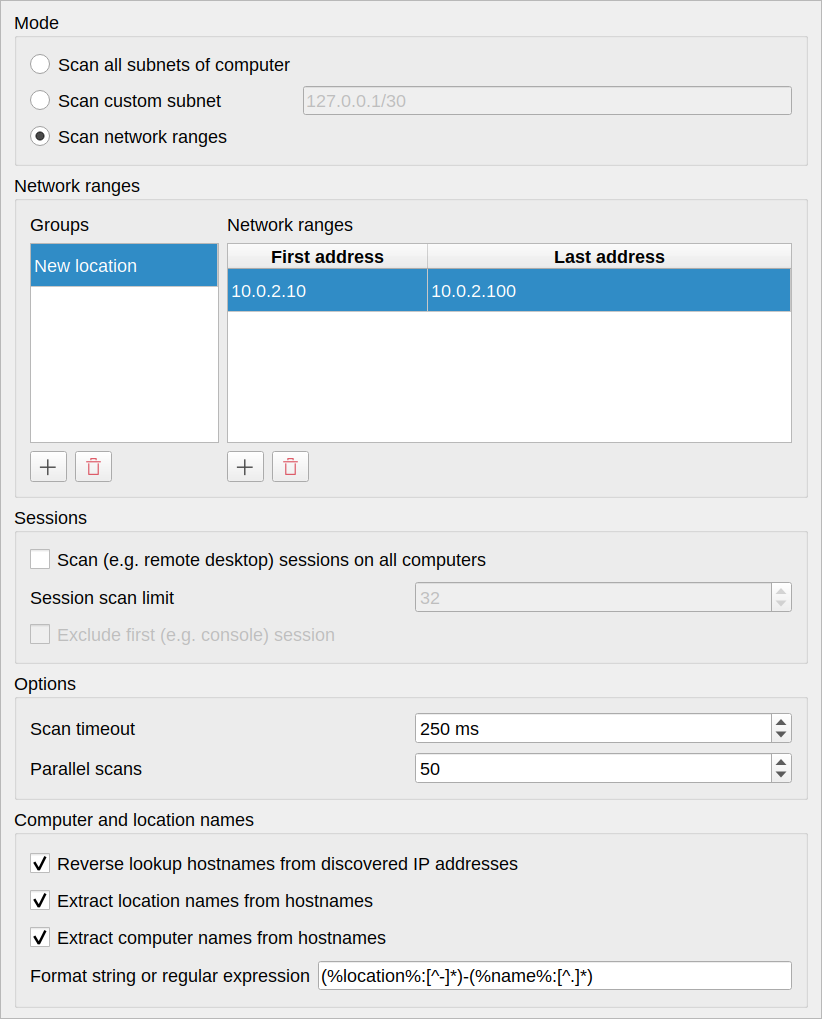
Only scan subnet of larger network
Lõpuks tuleb võrguobjekti kataloogi taustaprogrammi muuta Network discovery, et Veyon Master tegelikult kasutaks võrgutuvastuse lisandmoodulit.
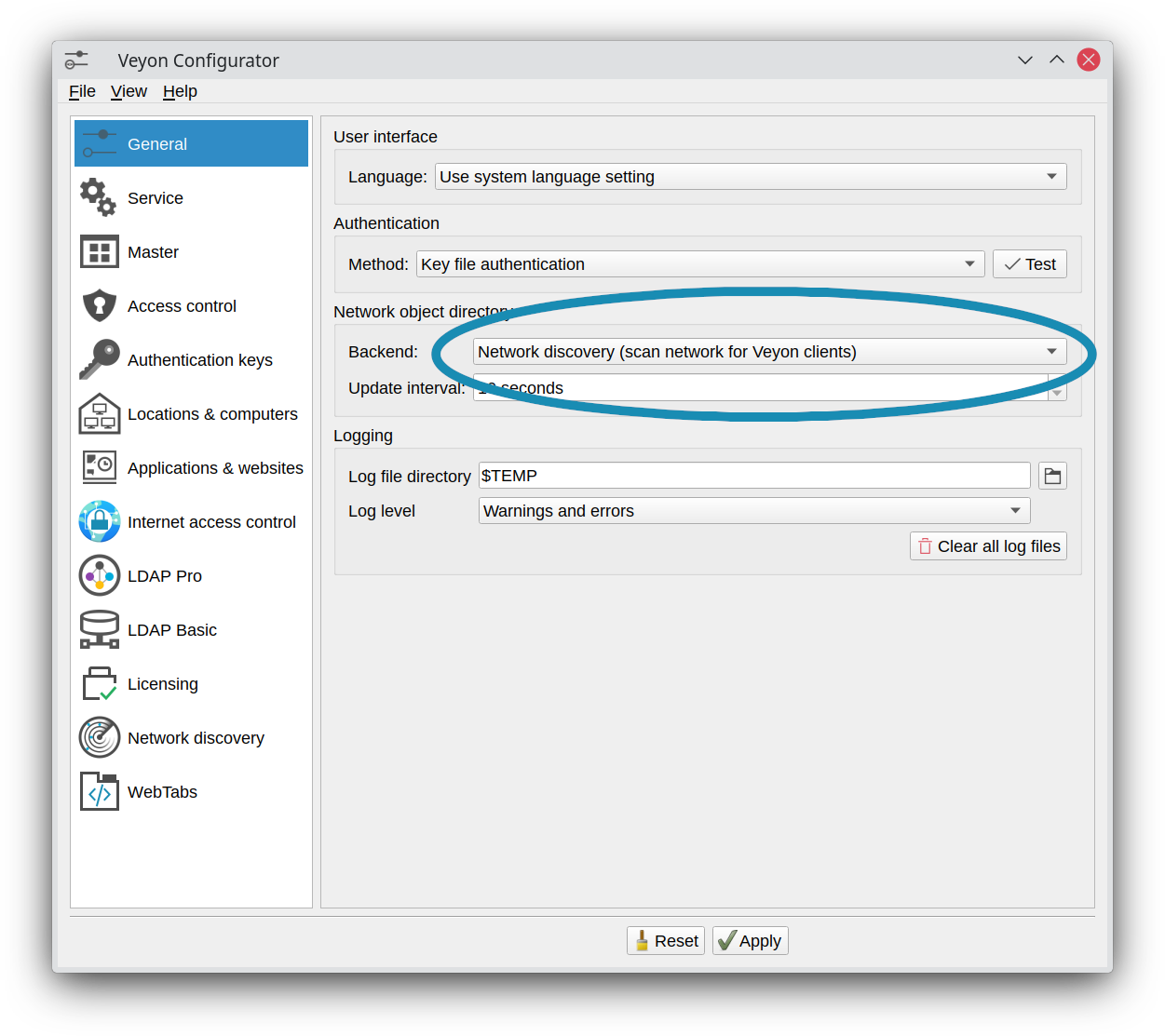
Change network object directory backend to Network Discovery
Nüüd saate käivitada Veyon Masteri ja peaksite nägema oma võrgus olevaid arvuteid, kus töötab Veyon Server. Sõltuvalt alamvõrgu või võrguvahemiku suuruses(st) võib esialgne skannimine võtta veidi aega (halvimal juhul kuni 1–2 minutit).
Valikud
Pärast soovitud alamvõrkude või võrguvahemike konfigureerimist võite hakata kohandama arvutite kontrollimise valikuid, et vähendada esialgset kontrollimise kestust.
Enamikul juhtudel saate paralleelsete skannimiste arvu suurendada 100–300-ni. Veyon Master avab paralleelselt määratud arvu TCP-ühendusi, seega veenduge, et te ei ammendaks arvuti ressursse ega operatsioonisüsteemi seatud protsessipõhiseid ressursipiiranguid.
Kui kõik arvutid on samas LAN-is (st pingi ajad on tavaliselt alla 1 ms), saate :guilabel:`scan timeout`i ka vähendada 25–100 ms-ni. Iga selle ajalõpu jooksul reageeriv arvuti kuvatakse Veyon Masteris.
Skannimise ajalõpuga 25 ms ja 250 paralleelse skaneerimisega suudab Veyon skannida 25*250=6250 arvutit sekundis. Selle valemi abil saate hõlpsalt arvutada oma keskkonna jaoks ideaalsed sätted, nii et Veyon Master ei nõua skannimiseks liiga kaua aega, tuvastades samal ajal kõik arvutid usaldusväärselt.
Sessioonid
One typical use case of the Network Discovery add-on are environments with remote desktop servers running sessions which should be monitored using Veyon. Since these sessions are dynamic, it’s hard to use statically configured hosts (even though optional port numbers can be specified). Instead you can simply enable the option Scan sessions on all computers and specify a limit – typically the maximum number of concurrent sessions on the server. Optionally it’s possible to exclude the first session since often it’s the local console session of the server at which only administrators log in or the primary login screen is visible.
Arvutinimed
Tähtis
Windowsis tuleks WINS-i pärandlahutus NetBIOS-i kaudu keelata, et vältida probleeme, mille puhul NetBIOS-i hostinimi ei kattu täpselt DNS-i hostinimega (eriti kuna NetBIOS-i hostinimed koosnevad alati ainult suurtähtedest, tegelikud DNS-i hostinimed tavaliselt mitte). Kui NetBIOS on lubatud, võib Network Discovery igal skannimisel/värskendusel saada operatsioonisüsteemilt juhuslikult muutuvaid hostinimetüüpe (teatud IP-aadressi jaoks). See põhjustab pidevaid taasühendamisi arvutitega, kuna Veyoni arvates on iga kord avastatud erinev arvuti.
Per default Network Discovery tries to perform DNS reverse lookups to determine the hostnames corresponding to the discovered IP addresses. If computers are not known to your DNS servers there are several other ways to achieve human-readable computer names, especially in remote desktop scenarios:
- User login name / Full name of user
Select one of these options to use the login or full name of the logged in user as computer name.
- Session client name / Session client address
Select one of these options to use the name or address of the client (i.e. the workstation or thin client connected to the discovered remote desktop session) as computer name.
- Seansi hosti hostinimi
Select this option to use the hostname of the remote desktop server (which is hosting the discovered remote desktop session) as computer name.
- Keskkonnamuutuja
Select this option to use the value of a certain environment variable in the user session as computer name. The name of the environment variable has to be specified.
- Registrivõti
Select this option to use the value of a registry key as computer name. The registry is read in the context of the logged in user so either a key in
HKEY_CURRENT_USERor any other globally readable key can be read from.
Märkus
For all data sources except for IP address and DNS name Network Discovery establishes temporary connections to all discovered computers to obtain the configured property. This slows down the scanning process and sligtly increases CPU load on the hosts while being scanned.
Optionally computers whose names can’t be resolved can be excluded from being shown in Veyon Master.
Asukohad
Depending on the mode, discovered computers are shown in the Discovered computers location or in locations named like the configured network ranges groups. However it’s possible to use other information to model locations and map discovered computers to them. For this several alternative data sources are available:
- Väljavõte arvutinimedest
See section Extracting computer and location names via regular expressions for details.
- Sisselogitud kasutajate rühmad
Select this option if users are organized in classes/courses and are members of corresponding class/course groups. Then these class/course groups will be used as locations. To only use these specific user groups (and filter out unrelated user groups), you can configure a filter expression. Only groups matching this filter expressions will be displayed as locations.
- Keskkonnamuutuja
Select this option to use the value of a certain environment variable in the user session as location name. The name of the environment variable has to be specified.
- Registrivõti
Select this option to use the value of a registry key as location name. The registry is read in the context of the logged in user so either a key in
HKEY_CURRENT_USERor any other globally readable key can be read from.
Extracting computer and location names via regular expressions
Depending on the mode, discovered computers are shown in the Discovered computers location or in locations named like the configured network ranges groups. However if the hostnames also contain the room or location name, you can let Network Discovery extract the location name and optionally also the displayed computer name from the hostname. This is done by applying a regular expression on the hostnames. The first capture group of the regular expression is then used as location/computer name.
For example, if the hostnames have the format r<ROOM-NUMBER>-c<COMPUTER-NUMBER> (e.g. r101-c01.example.org), you can change the location data source to Extract from computer names and use the following regular expression to extract the location name:
([^-]*)-.*
Esimene jäädvustamine (sulgudes) jäädvustab kõike kuni esimese miinusmärgini, nii et Veyon Masteris kuvatakse asukoht r101.
The same substring extraction is possible for computer names as well (except for Data source is set to IP address). For the example hostname scheme, a regular expression to extract the computer name (i.e. strip location and domain name) would be:
[^-]*-.([^.]*)*
Mõiste, süntaksi ja saadaolevate mustrivalikute kohta lisateabe saamiseks vaadake Vikipeedia artiklit regulaaravaldiste kohta.
Täpsemad seaded
In the Advanced view mode several options for fine-tuning the behavior are available:
- Property for generating persistent network object IDs
Per default Veyon calculates unique internal IDs for each network object based on multiple information such as hostname, computer name etc. These IDs are used when saving and loading custom computer positions in Veyon Master. In order to use fixed positions for computers based on their host or computer name (especially if the computer name is configured to equal e.g. the user name), you can choose the corresponding option.
- Data retrieval timeout
This setting influences the maximum time Network Discovery waits to obtain the computer name via DNS or to query certain session-related characteristics from a remote computer.
Default: 5000 ms
Käsurea liides
CLI-moodul networkdiscovery võimaldab arvutite otsimist käsurealt:
- scan [<SUBNET>]
See käsk kontrollib kas kohaliku hosti alamvõrke või Veyoni serverit kasutavate arvutite määratud alamvõrke.