Entra ID pistik
Üldine
Veyon Entra ID Connectori lisandmoodul laiendab Veyon Masterit, et lugeda seadmeid ja nende asukohta Entra ID eksemplarist. Pärast seadistamist ei pea arvuteid ja asukohti enam sisseehitatud võrguobjektide kataloogis säilitama. Varem konfigureeritud LDAP/ActiveDirectory integratsiooni saab asendada Entra ID konnektoriga pärast On Premise ActiveDirectory migreerimist Entra ID-le Azure’i pilves.
Algseadistus
First of all the Veyon Add-ons package needs to be installed. Make sure to download and install the version corresponding to your Veyon installation, i.e. Veyon 4.9.1 requires Veyon Add-ons 4.9.1 while for Veyon 4.8.3 you need to install version 4.8.3 of the add-ons. Please refer to Kasutuselevõtt for further information.
Kui installimine on lõppenud, näete Veyon Configurator programmis mõnda uut konfiguratsioonilehte. Üks neist kannab nime :guilabel: Entra ID Connector ja võimaldab seadistada lisandmooduli:
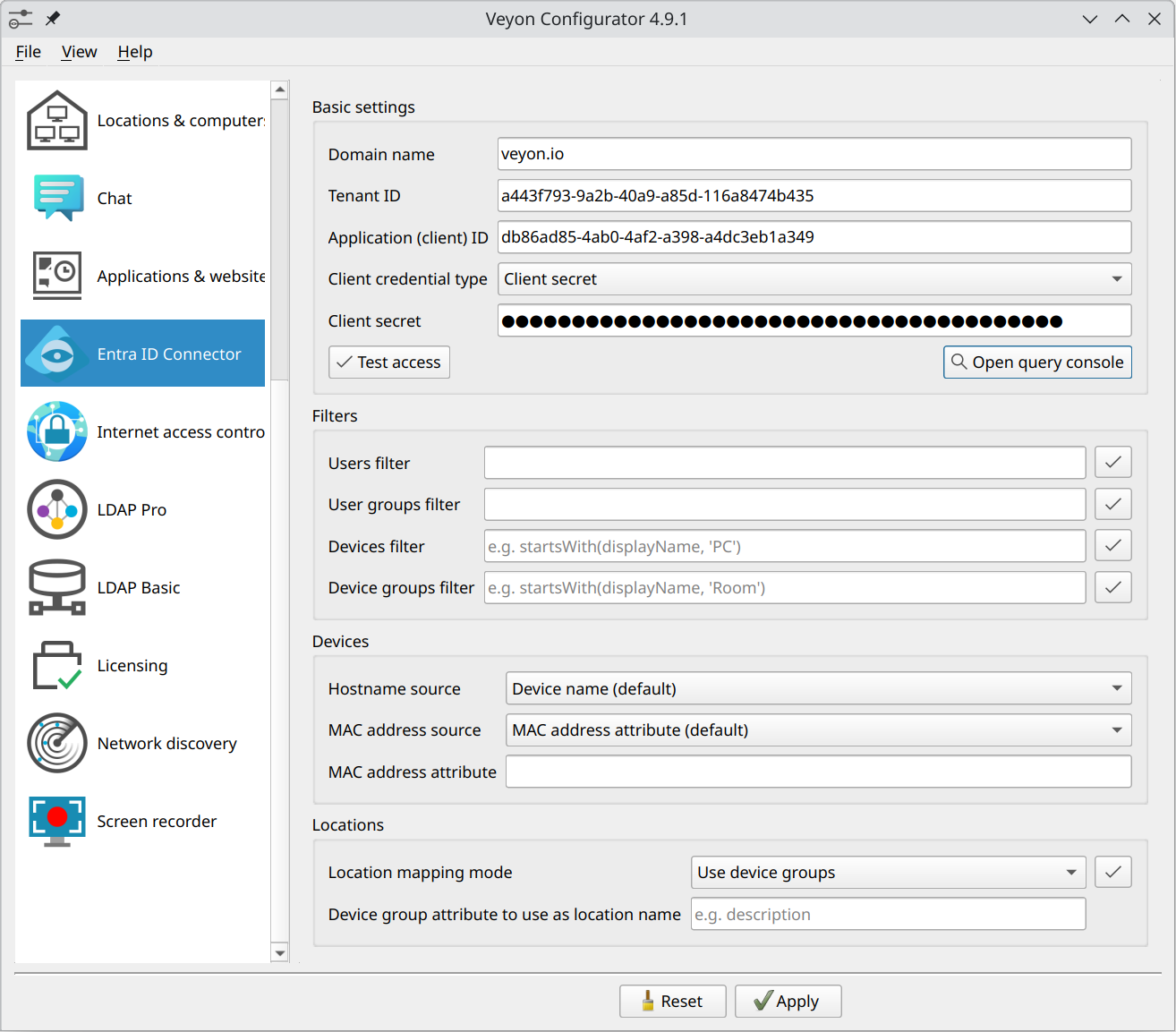
Entra ID Connectori konfiguratsioonileht
Rakenduse registreerimine
Nõutavate väljade täitmiseks tuleb konnektor esmalt registreerida teie Entra ID eksemplaris. Selleks avage veebibrauser ja minge Azure’i portaalis Entra ID haldusalale. Siin saate Veyon Entra ID Connectori rakendusena registreerida:
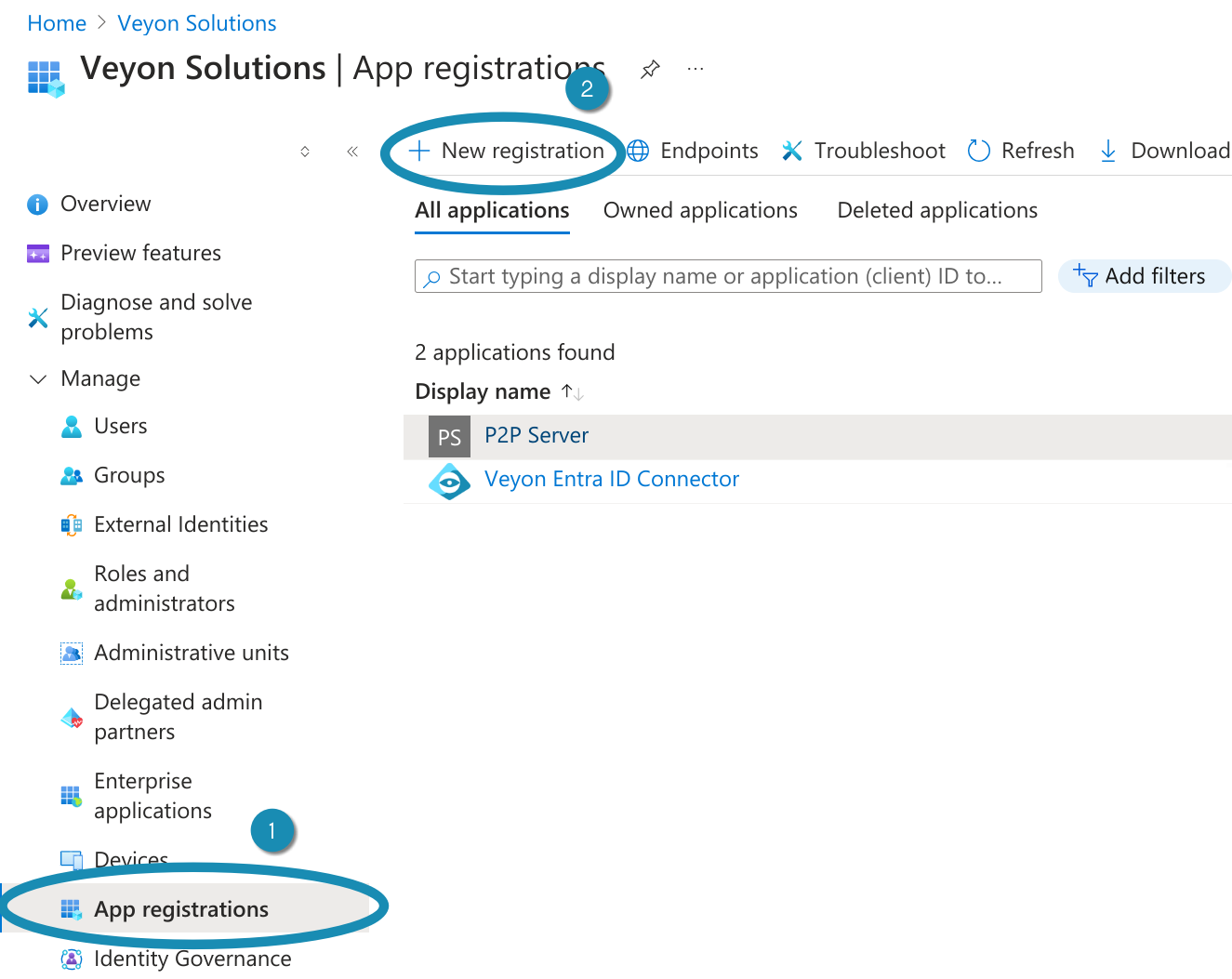
Veyon Entra ID konnektori rakenduse registreerimine – 1. samm
Klõpsates Uus registreerimine avaneb uus dialoog, kuhu tuleb sisestada sobiv nimi, nt. Veyon Entra ID Connector ja klõpsake nuppu Registreeri:
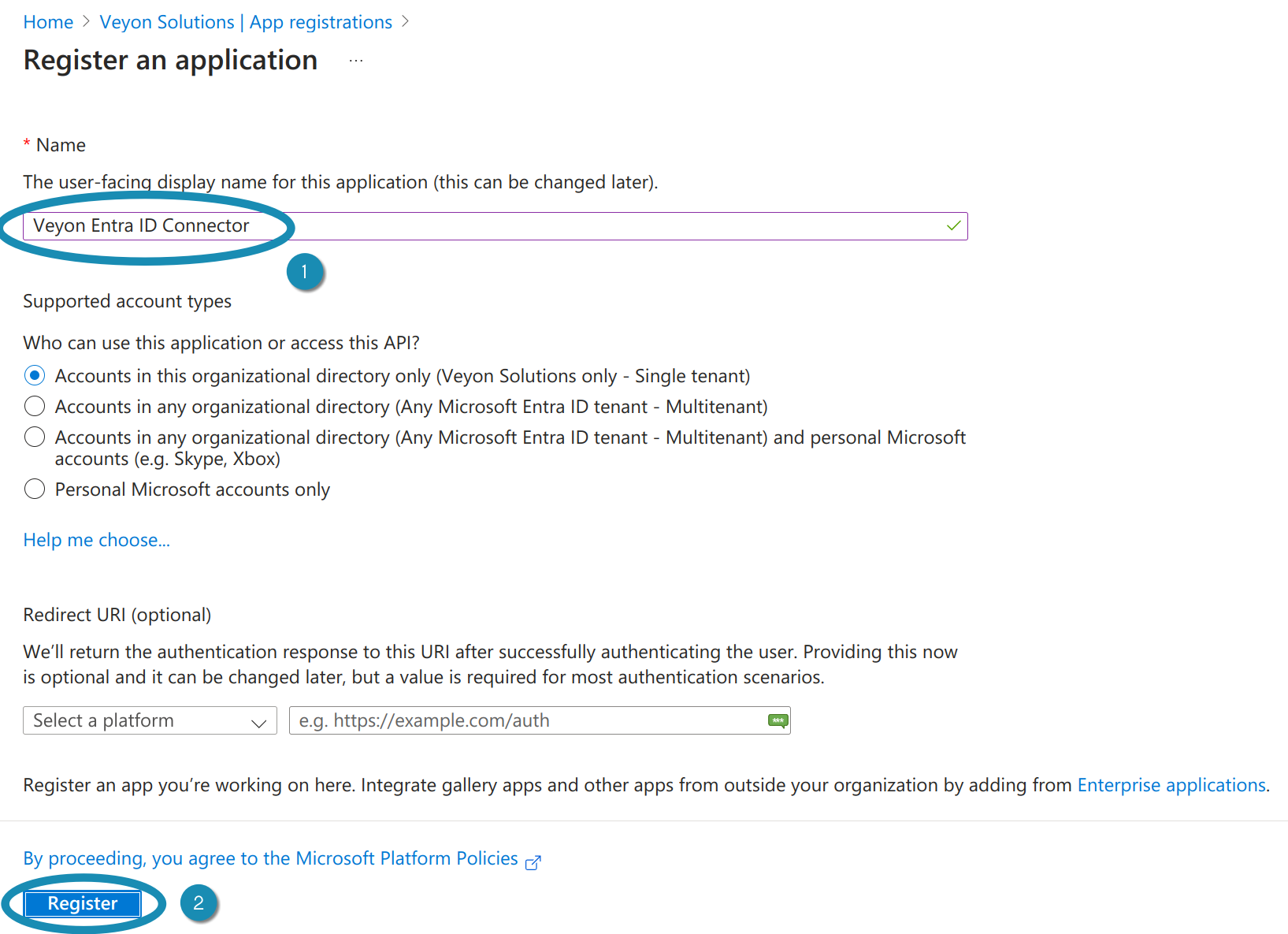
Veyon Entra ID konnektori rakenduse registreerimine – 2. samm
After the app has been registered, you can already see the required IDs in the Overview page. Copy the Application (client) ID and Directory (tenant) ID to the corresponding fields in the Veyon Configurator:
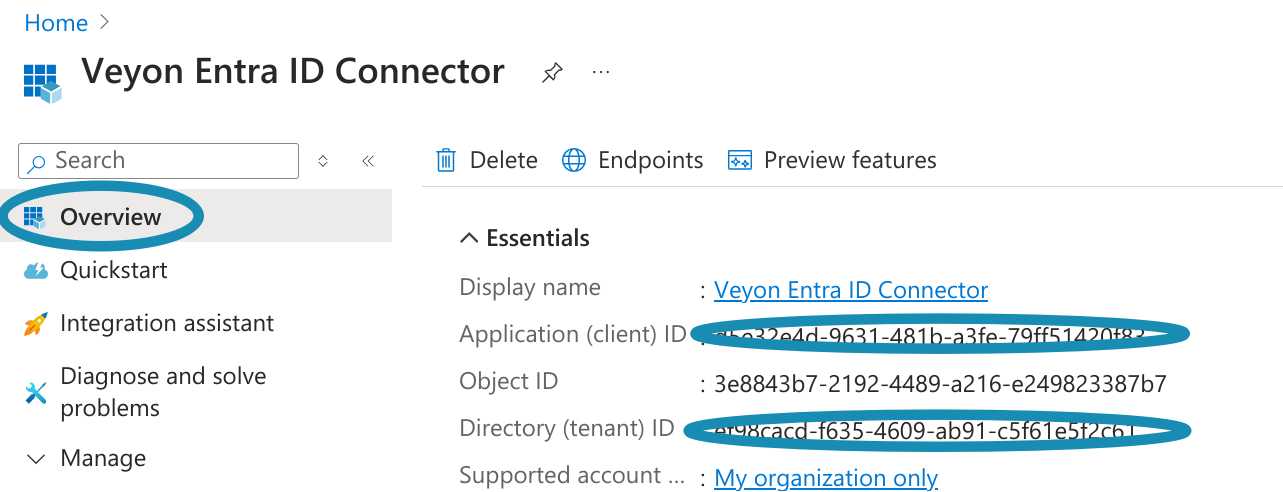
Veyon Entra ID konnektori rakenduse registreerimine – 3. samm
Kliendi salad
Järgmisena tuleb konfigureerida kliendi saladus või sertifikaat, millega Entra ID Connector saab end Azure’i pilves autentida. Avage leht Sertifikaadid ja saladused ja klõpsake Uus kliendi saladus. Andke saladusele nimi ja täpsustage, millal see aegub. Ärge valige liiga lühikest perioodi, kuna peate looma uue saladuse ja Veyoni uuesti konfigureerima iga kord, kui kliendi saladus on aegunud:
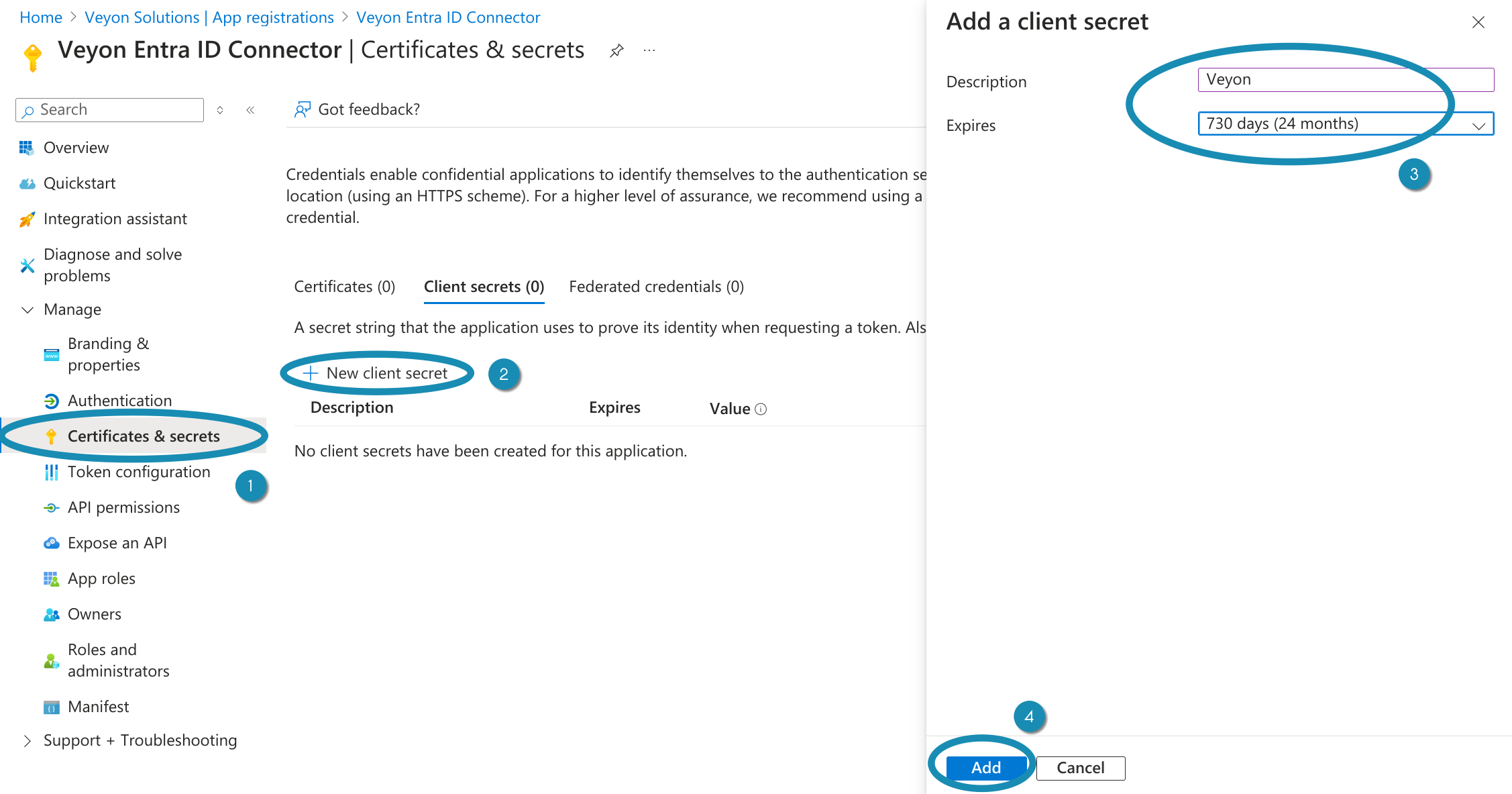
Veyon Entra ID konnektori kliendisaladuse loomine – 1. samm
Pärast kliendi saladuse loomist peate kopeerima selle väärtuse Veyoni konfiguraatoris väljale Kliendi saladus.
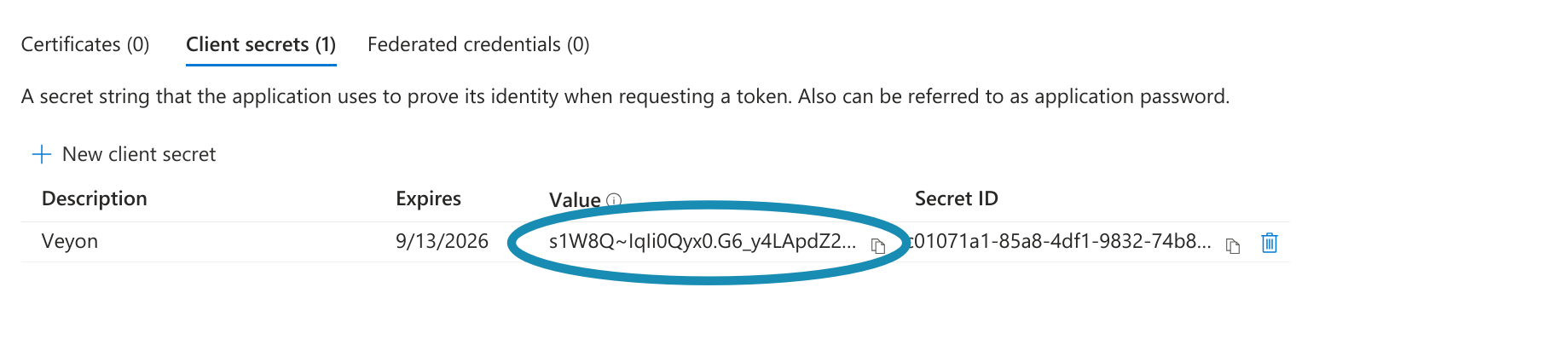
Veyon Entra ID konnektori kliendisaladuse loomine – 2. samm
Tähtis
Kliendi saladuse väärtus tuleb kohe kopeerida, kuna seda näidatakse ainult üks kord vahetult pärast kliendisaladuse loomist. Kui unustasite selle kopeerida, peate saladuse kustutama ja looma uue.
Nüüd saate kontrollida, kas rentniku ID, rakenduse ID ja kliendi saladus on õiged, klõpsates nuppu Testi juurdepääsu.
Vihje
Hea alternatiiv kliendisaladustele on kliendisertifikaadid. See võimaldab salvestada saladust kindlasse kohta, kus saate vastavalt soovile juurdepääsuõigusi määrata. Muidu kliendi saladus salvestatakse (krüpteeritakse) Veyoni konfiguratsiooni osana.
API-õigused
Viimaseks oluliseks ülesandeks on registreeritud rakenduse õiguste seadistamine, et Entra ID konnektor saaks lugeda Entra ID-st vajalikku teavet. Liikuge lehele API õigused klõpsake nuppu Lisa luba ja valige Microsoft Graph:
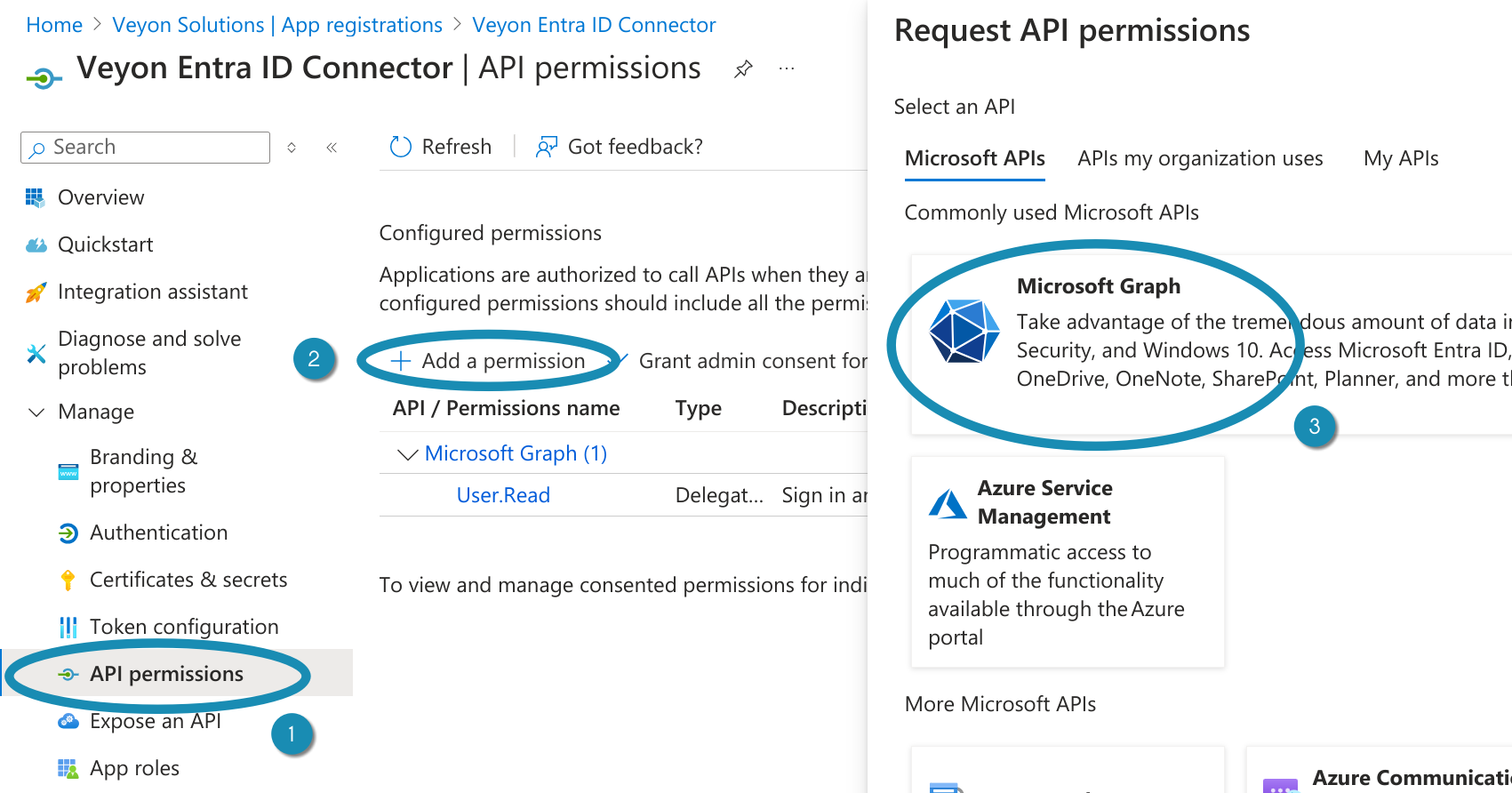
Seadistage Veyon Entra ID konnektori load – 1. samm
Nüüd tuleb valida tegelikud load. Valige Rakenduse õigused, otsige Seade.Loe.Kõik luba ja kontrollige seda:
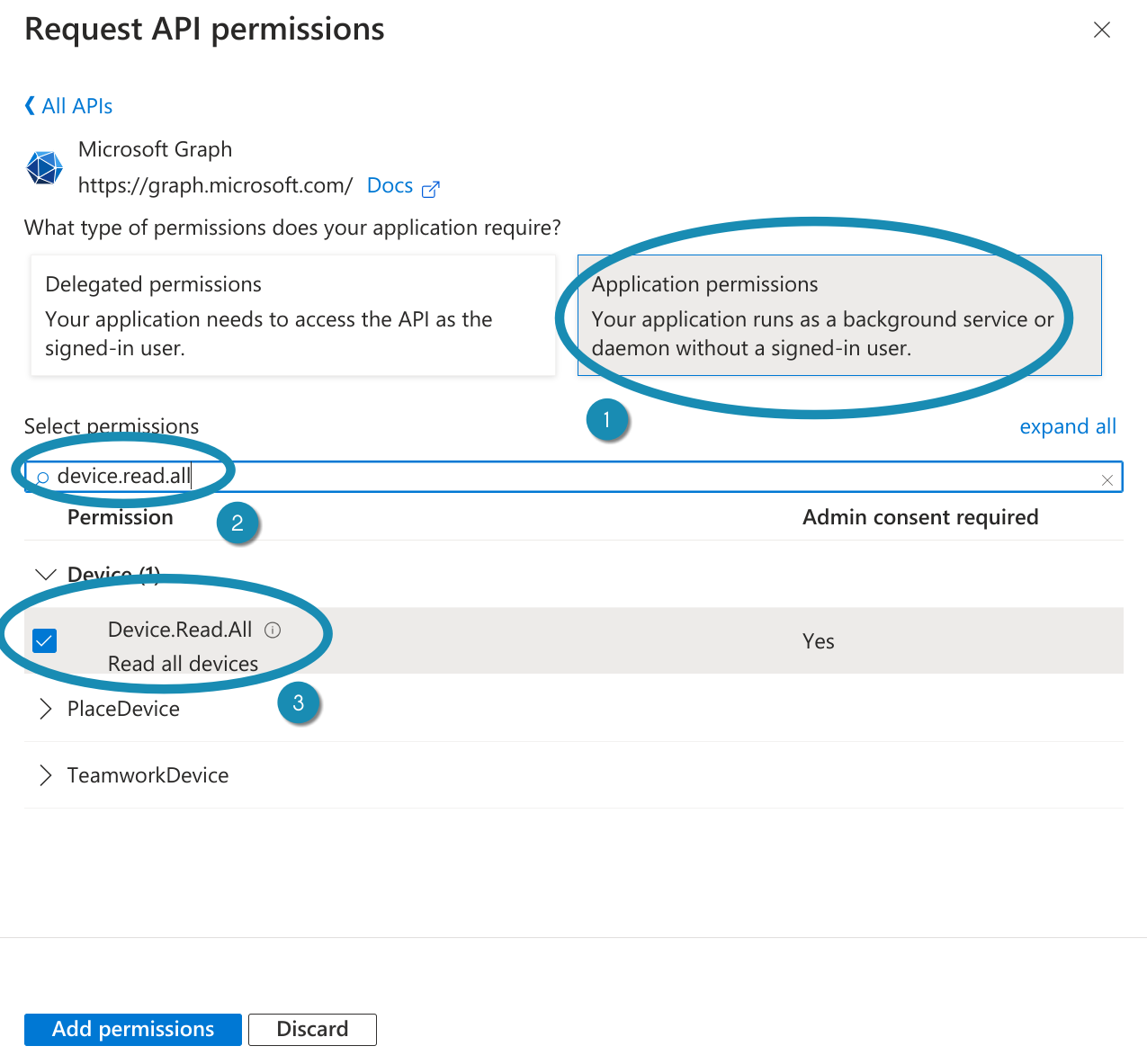
Seadistage Veyon Entra ID konnektori load – 2. samm
Repeat this step for the permissions Group.Read.All, GroupMember.Read.All and User.Read.All. If your devices are managed via Microsoft Intune and MAC addresses should be read from Intune, also add the DeviceManagementManagedDevices.Read.All permission. After checking all required permissions, click on Add permissions.
Viimane samm on nende lubade jaoks administraatori nõusoleku andmine. Seda saab hõlpsasti teha, klõpsates Anna administraatori nõusolek <YOUR-ORGANIZATION>:
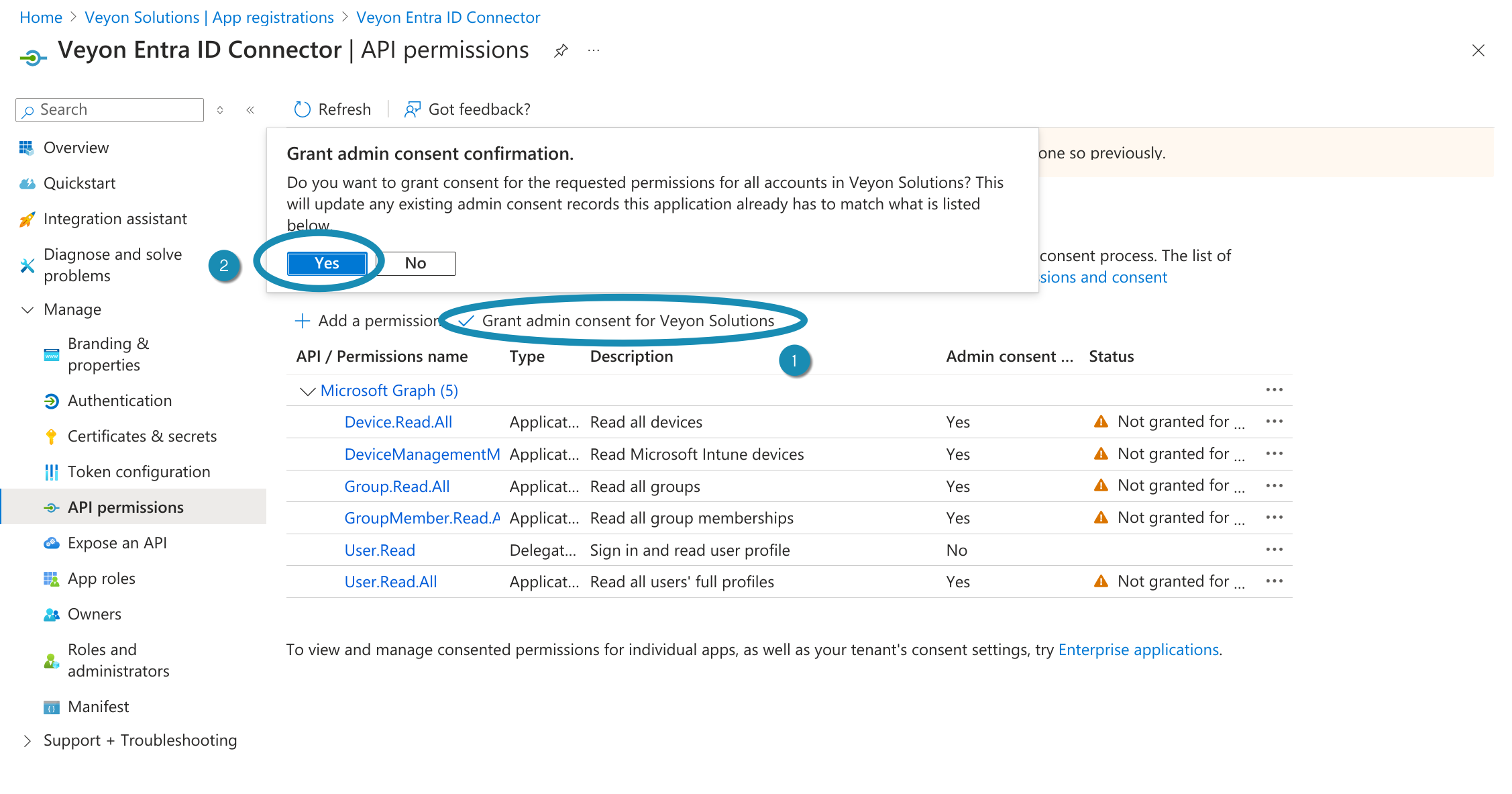
Seadistage Veyon Entra ID konnektori load – 3. samm
Filtrid
Filters make it possible to read out only certain objects (devices, users and groups) and make them available for Veyon. This depends largely on how the objects are structured in your Entra ID instance and which of them are required for Veyon. If, for example, security groups are used as locations (rooms), the Device groups filter can be adjusted accordingly so that only groups starting with Room are used as locations. In that case a suitable filter would be startsWith(displayName, 'Room').
Vaadake jaotist `Filtriavaldistes toetatud operaatorid ja funktsioonid <https://learn.microsoft.com/en-US/graph/filter-query-parameter?tabs=http#operators-and-functions-supported-in-filter-expressions> `_ lisateabe saamiseks.
Devices
In this section you can configure how certain device properties are retrieved. While the display name is always used as computer name, both hostname and the MAC address can be determined in different ways.
- Hostname source
If all device names match the hostnames and can be resolved to IP addresses using an internal DNS server (BIND, AD DS etc.) you can keep the default option Device name. You should not rely on legacy name resolution protocols such as NetBIOS. You can easily verify this by running
nslookup <HOSTNAME>. If the device names can’t be resolved by a DNS server in your network, it’s recommended to either resolve them via multicast DNS or store the actual hostname or host address in a custom Hostname attribute.- MAC address source
Veyon uses MAC addresses for powering on computers via Wake-on-LAN. If you want to take advantage of this feature you can populate each device’s MAC addresses in a certain (extension) attribute and enter the name of this attribute in the MAC address attribute field. If your devices are managed via Microsoft Intune you can also change the setting to use the Ethernet or Wi-Fi MAC addresses stored in Intune. Depending on the selected option, only the Ethernet or Wi-Fi MAC addresses are read or one of them while the first one is prioritized (i.e. the 2nd address only used if the 1st address is empty). Don’t forget to add the DeviceManagementManagedDevices.Read.All API permission.
Asukohad
In Veyon all computers are grouped into locations (rooms). To properly group the devices read from Entra ID, a suitable mapping mode needs to be chosen:
- Kasutage seadmerühmi
Select this mode if your devices belong to (security) groups which correspond to locations. This is the most preferred way since in Entra ID it’s quite easy to create groups for each room and add the devices to the corresponding groups. Most likely you will have to configure a suitable Device groups filter in the Filters section such that only these groups (e.g. starting with name
Room) are displayed as locations. Optionally you can configure the name of the group attribute which to use as location name. Per default the group’s display name is used.- Kasutage seadme asukoha atribuuti
As an alternative to location-based groups, the location of each computer can also be stored in an (extension) attribute. In this case, the name of this attribute must be specified.
- Väljavõte hostinimest regulaaravaldise kaudu
If the hostnames contain the room or location name, you can let Entra ID Connector extract the location name. This is done by applying a regular expression on the hostnames. The first capture group of the regular expression is then used as location / computer name.
For example, if the hostnames have the format
r<ROOM-NUMBER>-c<COMPUTER-NUMBER>(e.g.r101-c01.example.org), you can use the following regular expression to extract the location name:([^-]*)-.*Esimene jäädvustamine (sulgudes) jäädvustab kõike kuni esimese miinusmärgini, nii et Veyon Masteris kuvatakse asukoht
r101.Mõiste, süntaksi ja saadaolevate mustrivalikute kohta lisateabe saamiseks vaadake Vikipeedia artiklit regulaaravaldiste kohta.
Lõpetamine
Lõpuks tuleb võrguobjekti kataloogi taustaprogrammiks muuta Entra ID Connector, et Veyon Master tegelikult kasutaks Entra ID Connectori lisandmoodulit.
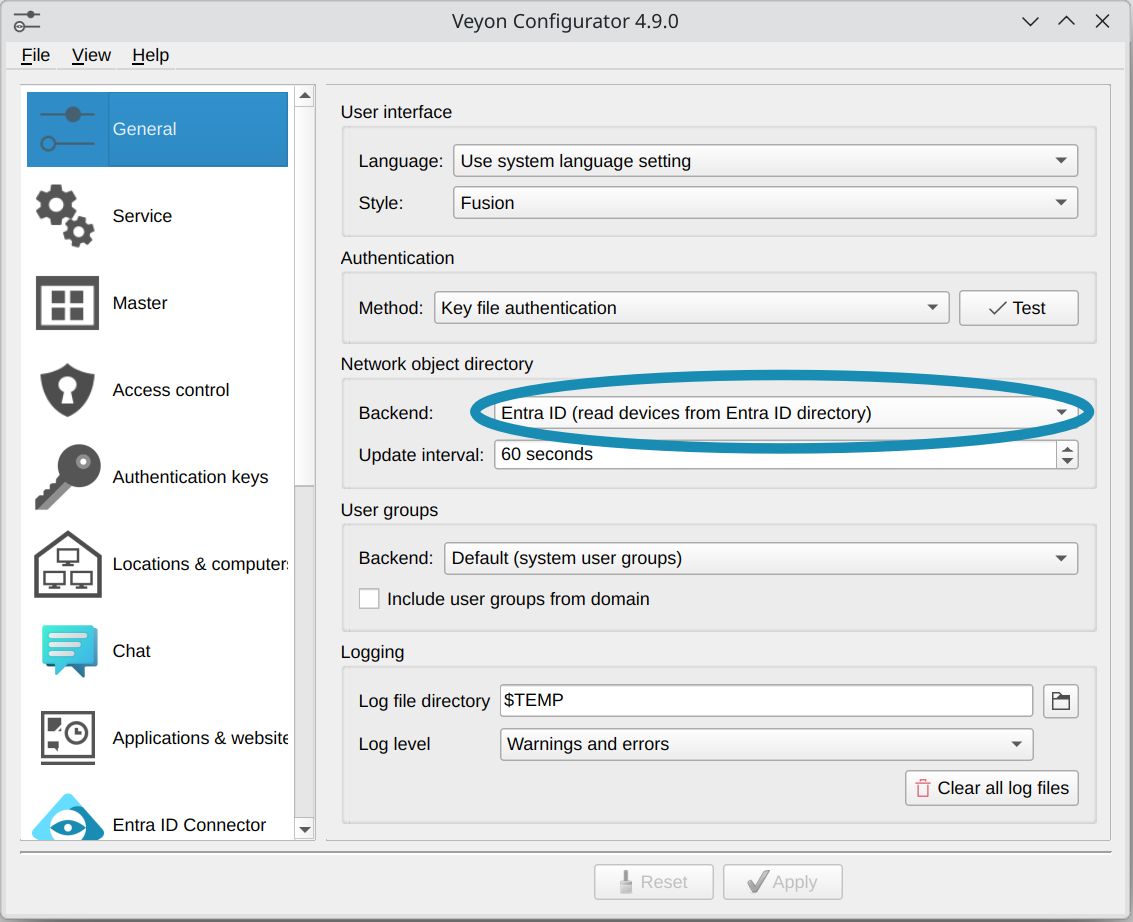
Muutke võrguobjekti kataloogi taustaprogrammiks Entra ID Connector
Nüüd saate käivitada Veyon Masteri ja peaksite nägema asukohti ja arvuteid oma Entra ID kataloogist.
Tähtis
Due to limitations in the Windows SSP authentication API, it’s not possible to use Veyon’s logon authentication with cloud-only Entra ID accounts. Please use key file authentication instead or make sure the accounts including password hashes are synced to an On Premise Active Directory.