Interneti juurdepääsu juhtimine
Üldine
Veyon Internet Access Controli lisandmoodul võimaldab blokeerida kogu klassi või üksikute arvutite juurdepääsu Internetile sellistes olukordades nagu eksamid. Interneti-juurdepääs blokeeritakse kliendipoolselt erinevate taustaprogrammide pakutavate mehhanismide abil.
Algseadistus
First of all the Veyon Add-ons package needs to be installed. Make sure to download and install the version corresponding to your Veyon installation, i.e. Veyon 4.9.1 requires Veyon Add-ons 4.9.1 while for Veyon 4.8.3 you need to install version 4.8.3 of the add-ons. Please refer to Kasutuselevõtt for further information.
Kui installimine on lõppenud, näete Veyon Configurator programmis mõnda uut konfiguratsioonilehte. Üks neist kannab nime :guilabel: Interneti juurdepääsu kontroll ja võimaldab seadistada lisandmooduli:
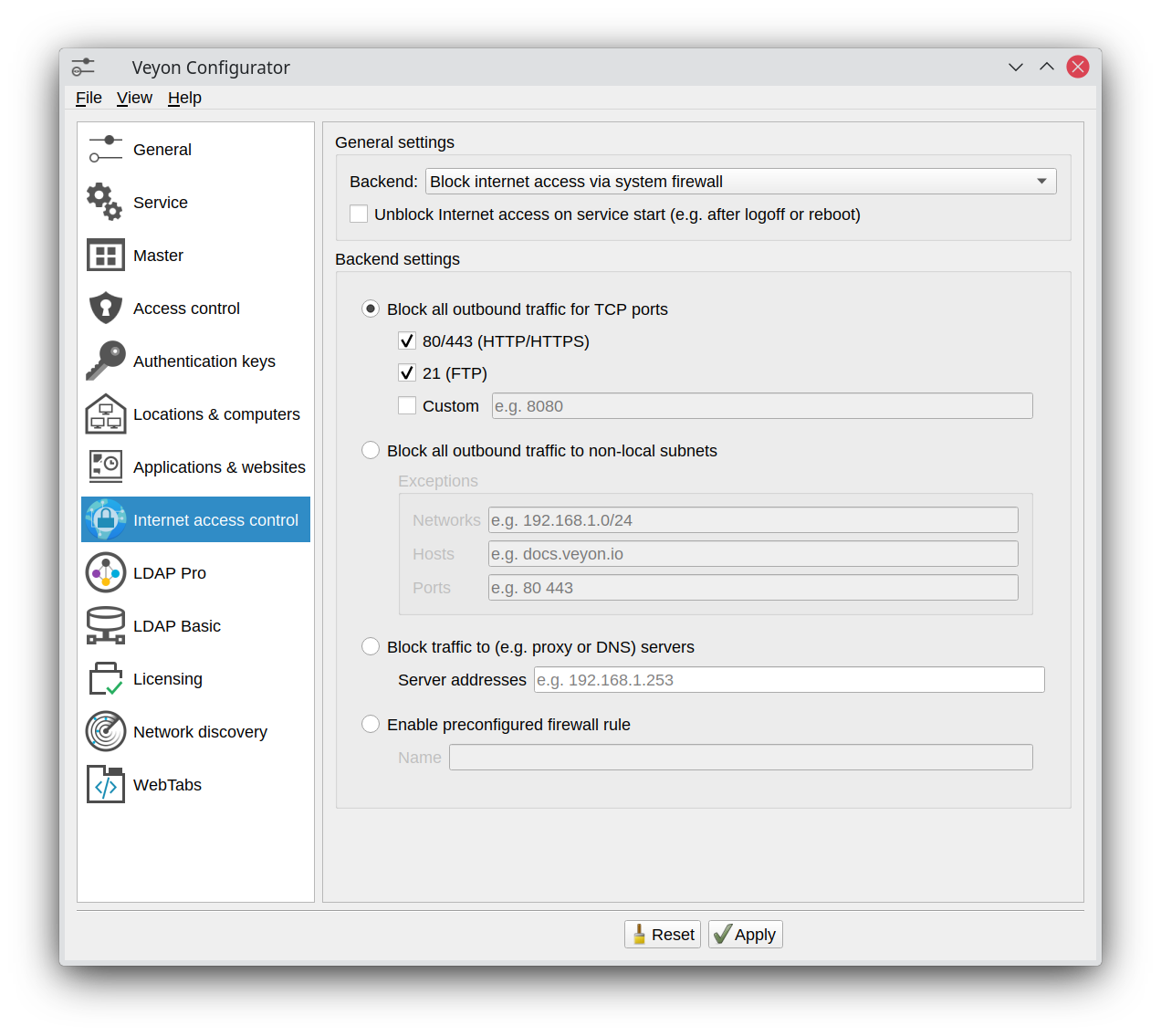
Internet Access Control configuration page
In most cases you can leave the default settings and continue with deploying the add-on to the student computers.
Tähtis
If you make changes to the configuration, remember to always deploy the updated configuration to the student computers! Only the client-side settings affect the way the Internet access is blocked on the clients.
Nüüd saate käivitada Veyon Masteri ja klõpsata nuppu Interneti-juurdepääs, et avada menüü koos Interneti-juurdepääsu blokeerimise ja Interneti-juurdepääsu blokeeringu tühistamisega. Pärast üksuse Blokeeri Interneti-juurdepääs aktiveerimist ei tohiks valitud arvuti(te) kasutajad enam Internetis veebisaiti avada. Kui need on endiselt olemas, kontrollige seadeid ja proovige võib-olla mõnda muud blokeerimisrežiimi või taustaprogrammi.
Backends
There are currently two backends providing different mechanisms to block the Internet access. Both backends are described in the following subsections.
Interneti blokeerimine süsteemi tulemüüri kaudu
This is the standard backend that should preferably be used, as it offers the most flexibility and works most reliably. When this backend is used, the Veyon Service makes changes to the system firewall to block Internet access. There are platform-specific differences here:
- Windows
Veyon controls the integrated Windows Firewall and makes temporary changes to its configuration. This means that the Windows Firewall must be activated. In addition, changes to the configuration of the Windows Firewall must not be prevented by group policies.
- Linux
Veyon works on the basis of nftables and calls the related command line tool
nft. This is used to temporarily add additional rules to block Internet access.
For both operating systems, the backend configuration is identical. In general different modes are available. The mode selection depends on the network environment and the desired blocking behavior.
- Block all outbound traffic for TCP and UDP ports
This is the default mode and should work in most environments. In this mode the Veyon Service adds special rules to the firewall which block any traffic to the configured ports. Use this mode if blocking the TCP and UDP ports 80/443 and one or multiple custom ports (separated by space) is sufficient. To block all traffic use the second mode.
- Blokeerige kogu väljaminev liiklus välistele alamvõrkudele
In this mode, all network traffic directed to networks outside the local subnets is blocked. On Windows, the Veyon service temporarily changes the configuration of all firewall profiles (domain, private, public) to „Outbound connections that do not match a rule are blocked“. If Exceptions are configured, appropriate rules are added to allow access to these networks, hosts or ports. This can be used, for example, to preserve access to the intranet and other internally hosted platforms. External websites can also be defined as exceptions here under certain circumstances, but the addresses of all servers/CDNs from which the website loads resources must then also be specified.
- Blokeeri liiklus (näit puhverserver või DNS) serveritesse
If the student computers access the Internet via a proxy server, you can select this option. A firewall rule is then added that simply blocks all traffic to the proxy address. Alternatively, access to certain DNS servers can also be blocked, although in most cases this leads to problems when accessing internal resources such as network drives etc.
- Luba eelkonfigureeritud tulemüüri reegel
If the three modes above are not suitable for your network you can also configure an own custom rule in the Windows Firewall. This rule should be disabled by default. The Veyon Service will enable this rule while the Internet access is to be blocked. On Linux the Veyon Service calls
nftto load the nftables rules from the file/etc/veyon/iac/firewall/rules.d/<RULENAME>. You can define any nftables rules in this file.
Internetiühenduse blokeerimine marsruutimistabeli muutmisega
If the firewall backend cannot be used (e.g. if a 3rdparty firewall software is used instead of the Windows Firewall), you can use this backend as a fallback. It works in a very simple way by temporarily removing the default route from the routing table and/or adding a user-defined (possibly deliberately invalid) route to block Internet access. In any case, the settings should be made carefully so that access to the internal network continues to function properly. Especially in larger segmented networks, both options should be combined by removing the default route on the one hand and adding a route to the internal network on the other.