Internet Access Control
Ogólne
The Veyon Internet Access Control add-on allows blocking the access to the Internet for the whole class or individual computers in situations such as exams. The Internet access is blocked client-side by using mechanisms provided by the different backends.
Initial setup
Przede wszystkim należy zainstalować pakiet Veyon Add-ons. Upewnij się, że pobrałeś i zainstalowałeś wersję odpowiadającą twojej instalacji Veyon, tj. Veyon 4.9.1 wymaga Veyon Add-ons 4.9.1, podczas gdy dla Veyon 4.8.3 musisz zainstalować wersję 4.8.3 dodatków. Więcej informacji można znaleźć w sekcji Wdrożenie.
After the installation has completed, you’ll see some new configuration pages in the Veyon Configurator program. One of them is called Internet access control and allows to set up the add-on:
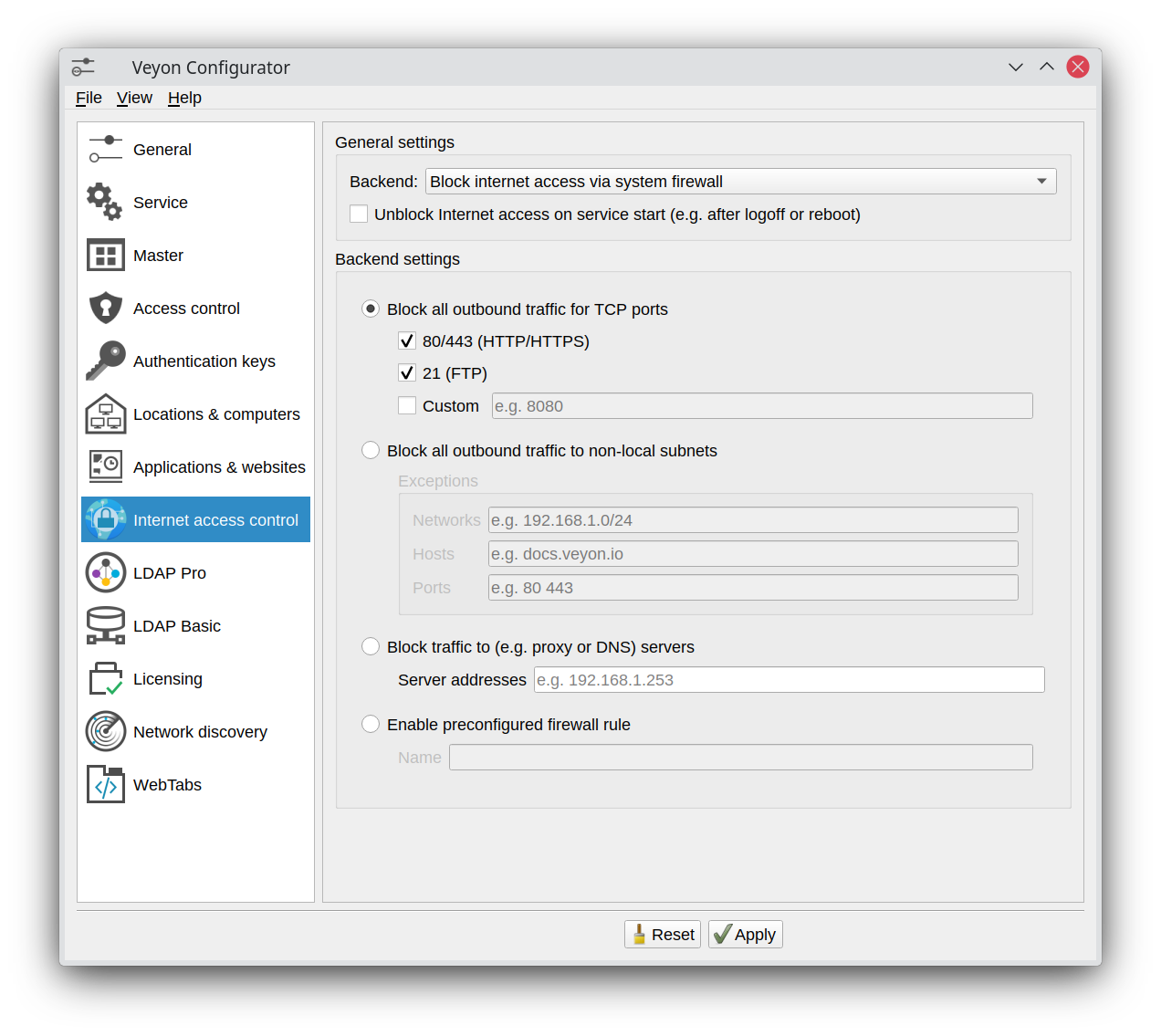
Internet Access Control configuration page
In most cases you can leave the default settings and continue with deploying the add-on to the student computers.
Ważne
If you make changes to the configuration, remember to always deploy the updated configuration to the student computers! Only the client-side settings affect the way the Internet access is blocked on the clients.
Now you can start Veyon Master and can click the Internet access button to open the menu with the Block Internet access and Unblock Internet access items. After activating the Block Internet access item, the users on the selected computer(s) no longer should be able to open a website on the Internet. If they still are, please check the settings and possibly try another blocking mode or backend.
Backends
There are currently two backends providing different mechanisms to block the Internet access. Both backends are described in the following subsections.
Zablokuj dostęp do Internetu przez zaporę sieciową systemu
Jest to standardowy backend, który powinien być najlepiej używany, ponieważ oferuje największą elastyczność i działa najbardziej niezawodnie. Gdy używany jest ten backend, usługa Veyon wprowadza zmiany w zaporze systemowej w celu zablokowania dostępu do Internetu. Istnieją tutaj różnice specyficzne dla platformy:
- Windows
Veyon controls the integrated Windows Firewall and makes temporary changes to its configuration. This means that the Windows Firewall must be activated. In addition, changes to the configuration of the Windows Firewall must not be prevented by group policies.
- Linux
Veyon works on the basis of nftables and calls the related command line tool
nft. This is used to temporarily add additional rules to block Internet access.
For both operating systems, the backend configuration is identical. In general different modes are available. The mode selection depends on the network environment and the desired blocking behavior.
- Blokowanie całego ruchu wychodzącego dla portów TCP i UDP
This is the default mode and should work in most environments. In this mode the Veyon Service adds special rules to the firewall which block any traffic to the configured ports. Use this mode if blocking the TCP and UDP ports 80/443 and one or multiple custom ports (separated by space) is sufficient. To block all traffic use the second mode.
- Zablokuj cały ruch wychodzący do nielokalnych podsieci
In this mode, all network traffic directed to networks outside the local subnets is blocked. On Windows, the Veyon service temporarily changes the configuration of all firewall profiles (domain, private, public) to „Outbound connections that do not match a rule are blocked”. If Exceptions are configured, appropriate rules are added to allow access to these networks, hosts or ports. This can be used, for example, to preserve access to the intranet and other internally hosted platforms. External websites can also be defined as exceptions here under certain circumstances, but the addresses of all servers/CDNs from which the website loads resources must then also be specified.
- Zablokuj ruch do serwerów (np. proxy lub DNS)
If the student computers access the Internet via a proxy server, you can select this option. A firewall rule is then added that simply blocks all traffic to the proxy address. Alternatively, access to certain DNS servers can also be blocked, although in most cases this leads to problems when accessing internal resources such as network drives etc.
- Włącz wstępnie skonfigurowane reguły zapory sieciowej
If the three modes above are not suitable for your network you can also configure an own custom rule in the Windows Firewall. This rule should be disabled by default. The Veyon Service will enable this rule while the Internet access is to be blocked. On Linux the Veyon Service calls
nftto load the nftables rules from the file/etc/veyon/iac/firewall/rules.d/<RULENAME>. You can define any nftables rules in this file.
Zablokuj dostęp do Internetu, modyfikując tabelę routingu
Jeśli backend zapory nie może być użyty (np. jeśli zamiast Zapory systemu Windows używane jest oprogramowanie zapory innej firmy), można użyć tego backendu jako rozwiązania awaryjnego. Działa to w bardzo prosty sposób, tymczasowo usuwając domyślną trasę z tablicy routingu i/lub dodając zdefiniowaną przez użytkownika (być może celowo nieprawidłową) trasę w celu zablokowania dostępu do Internetu. W każdym przypadku ustawienia powinny być dokonywane ostrożnie, aby dostęp do sieci wewnętrznej nadal działał poprawnie. Szczególnie w większych sieciach podzielonych na segmenty, obie opcje powinny być połączone poprzez usunięcie domyślnej trasy z jednej strony i dodanie trasy do sieci wewnętrznej z drugiej.